API Management on Global Azure Bootcamp 2016

I recently had the opportunity to give an introduction into API Management at the Global Azure Bootcamp 2016 in Linz. You can find the pickings of that event here (german only). I decided to publish my slides about API Management but also some information about the demo environment I used.

Ok this turned out to be more a blog post about how to authenticate Web Apps with Web API Apps Smile

First and foremost, to play around with Azure API Management you need a Microsoft Azure Subscription, which you can get here.

My demo environment looked like this:

  • 1 developer instance of API Management managed through the classic azure portal.
  • 1 azure resource group where I run a free  App Service Plan managed through the new azure portal with
  • 3 Azure API Apps (CalcGAB2016, CalcEnterprise, CalcEnterpriseClient)
  • 1 azure active directory instance managed through the classic azure portal.

If you plan to create API Apps yourself I recommend to use the template “Azure API APP” in ASP.NET applications. This will come preconfigured with the Swashbuckle packages which allow to create an OPEN API SPECIFICATION (formerly known as swagger) document straight from your code. You can read more here about how to customize the swashbuckle  generated api definitions.

Now to my sample code. Since there is plenty of documentation on how to use API-Management (you can find an incomplete but helpful list in the last slide of my presentation). My JWT-Token demo is based on the presentation from Darren Miller (see time – 7:30).

Therefore will focus instead on some specifics in the AAD Integration of the API app “CalcEnterprise” and the web app “CalcEnterpriseClient” which I have secured with AAD.

Securing Azure Web/API Apps

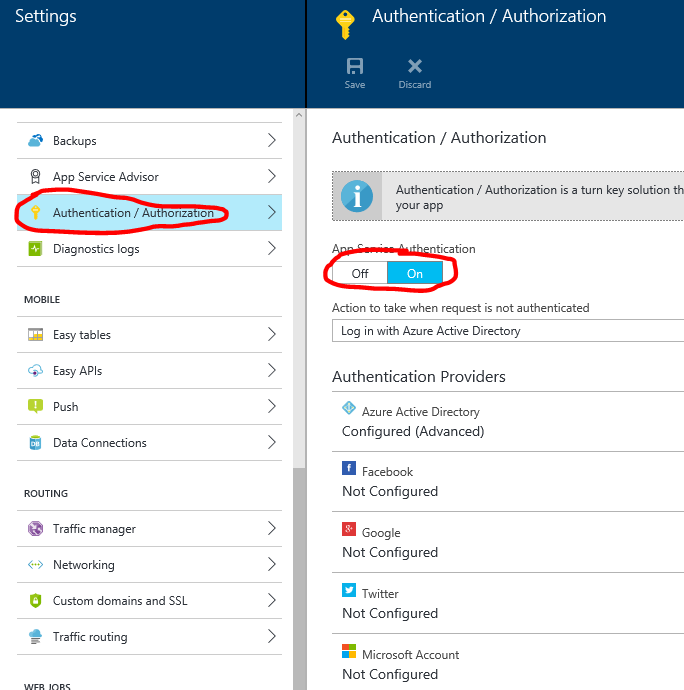
I love the idea that you can move out the authentication of your application and instead just configure it on the portal. Like a former colleague of me said: You do not want a web developer to write your authentication code Smile. Instead you just write the application with “No Authentication” selected and configure the access in the new management portal:
image

Depending on the authentication you selected your ClaimsPrincipal.Current object will hold all claims provided by the authority that authenticated your visitors. Aside of that you receive the complete token and some other information about the authentication in the headers that Azure provides:

X-MS-CLIENT-PRINCIPAL-NAME=f.e. email
X-MS-CLIENT-PRINCIPAL-ID=f.e. a GUID like in AAD
X-MS-CLIENT-PRINCIPAL-IDP=Identity Provider (AAD => aad)
X-MS-TOKEN-AAD-ID-TOKEN=in AAD the JWT Token with additional claims, that you also can find in ClaimsPrincipal.Current.Claims if you happen to run the application in ASP.NET

Step 1 Configure your AAD & securing your Web APP/API

After you have created a new AAD instance like <yourChoosenName>.onmicrosoft.com you can define an AAD application which your application will be using. Under Applications Tab

  • Add new application “Add an application that my organization is developing”
  • Name it and select “Web Application and/or WEB API”
  • Provide the sign-in url which will be the URL to your website like: https://&lt;yourapp>.azurewebsites.net
  • Provide an unique ID which can be any unique URI, but for multitenant applications use the base tenant uri in combination like so: https://<yourTenantName>.onmicrosoft.com/<your unique name of the app>

After you have created the application you will find also populated the REPLY URL which is important as the JWT Token will be sent only to this URL by the identity provider! To configure Authentication/Authorization for your Web APP/API:

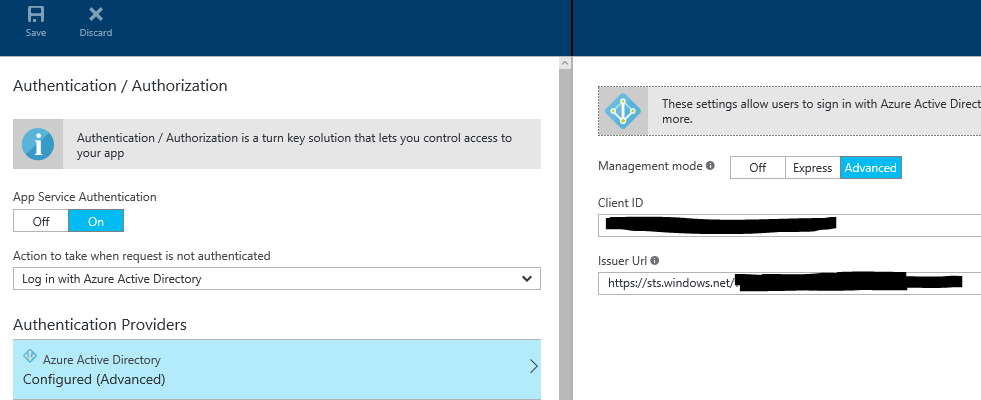
  • copy Client ID of your AAD Application
  • Open “View Endpoints” (button on the bottom of the screen) – Copy the URL of the Federation Metadata Document
    Open the Federation Metadata Document URL in a browser
    In the XML find the element “Entity” and copy the content of the  attribute “entityID” which contains the link to the Issuer (Issuer  URL)

You will need these two values to configure Authentication/Authorization in your WebAPP/API like so:
image

Step 2 Applying this concept to my Sample Code

I figured out that I could create at least 2 different scenarios with my two Web APP/APIs:

  • Assign Client and API to a single AAD applications
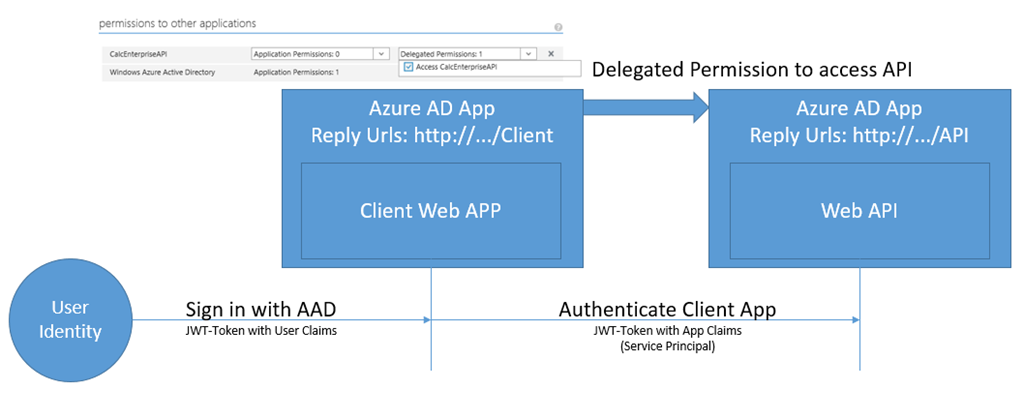
  • Assign Client and API into separate AAD applications

With the first option I can easily authenticate my call into the API from my Client with the same identity that authenticated on the client (Implemented in the HomeController “Index_SameAAD”):image

With the second option I can my Client App as Service Principal to authenticate to my API, which hides the original identity for the API.
(Implemented in the HomeController “Index”):
image

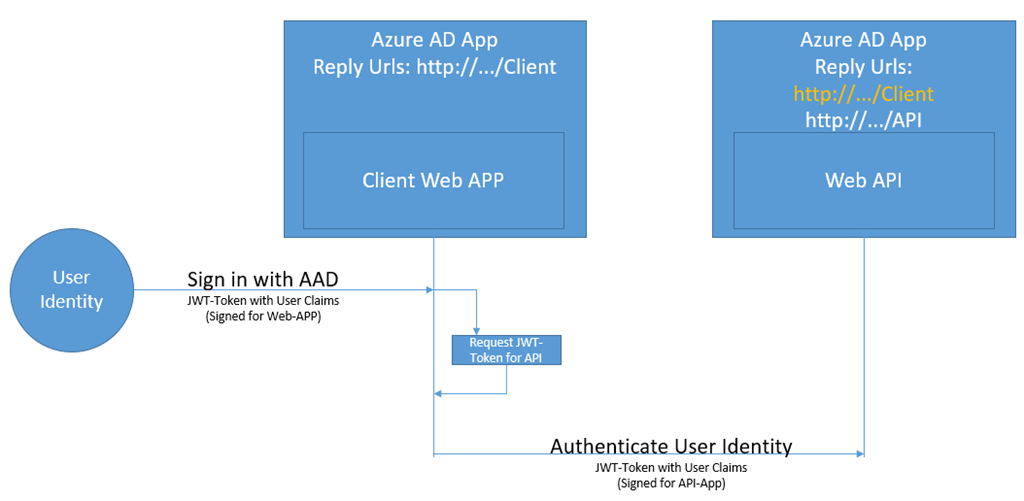
But I also can re-authenticate the identity on the API to see the original identity. I found this excellent article of Vittorio Bertocci on using ADAL’s AquireTokenByAuthorizationCode to call a Web API from a Web APP which showed me the way how to implement this.(Implemented in the HomeController “Index_OtherAAD”):
image

Step 3 – Clone the source

Feel free to clone my source code from my github repository and play with it.

You need to replace following placeholders with actual values and deploy & configure your apps to Azure of course.

  • ”<your API MGMT API key>”
  • <yourAPIMInstanceName>
  • <yourcalcEnterpriseAPIwebsitesUrl>
  • <yourAPIMInstanceName>
  • <CalcEnterpriseClient AAD CLientID>
  • <CalcEnterpriseClient AAD App Secret/Key>
  • <CalcEnterpriseAPI AAD CLientID>
  • <yourTenantName>

First restore all packages – For some reasons I had issues in the Calc-Project with not loading the correct DLL for System.Web.Http and others (funny enough it shows errors in Visual Studio 2015 but still compiles fine *lol*). Closing the Solutions and opening the Project-File instead fixes this.

Clone the Source
Download Slides

Enjoy a nice day – AndiP

Creating a JWT-Token in Windows 8.1 Phone App

I thought I quickly download the JWT nuget package to my Windows 8.1 universal app. Well I was wrong.  After some searching I found this article Creating a JWT token to access Windows Azure Mobile Services. But System.Security.Cryptography is no longer available in Windows Phone 8.1 Universal Apps. You should rather use the classes in Windows.Security.Cryptography which are of course inherently different.

So I rewrote the JsonWebToken Class to work in my universal app and share this here if you run into the same issue. I validated it with the JWT debugger on http://jwt.io/.

BTW, before you ask that question: “Why do you not use Windows 10 Universal App?” Answer: I would if the Windows 10 Preview on my Windows Phone would be in a better shape Smile. This was the first preview I had to roll back in my life.

/// <summary>
/// based on http://www.contentmaster.com/azure/creating-a-jwt-token-to-access-windows-azure-mobile-services
/// Reimplemented cryptographic part
/// </summary>
public class JsonWebToken
{
/// <summary>
/// Create a HMACSHA256 Signing HASH
/// </summary>
/// <param name="signingKey"></param>
/// <param name="bytesToSign"></param>
/// <returns></returns>
private static byte[] HMACSHA256(byte[] signingKey, byte[] bytesToSign)
{
var signingKeyBuffer = CryptographicBuffer.CreateFromByteArray(signingKey);
var bytesToSignBuffer = CryptographicBuffer.CreateFromByteArray(bytesToSign);

var hmacAlgorithm = MacAlgorithmProvider.OpenAlgorithm(MacAlgorithmNames.HmacSha256);
var hash = hmacAlgorithm.CreateHash(signingKeyBuffer);
hash.Append(bytesToSignBuffer);
string base64Hash = CryptographicBuffer.EncodeToBase64String(hash.GetValueAndReset());
return Convert.FromBase64String(base64Hash);
}

public static string Encode(object payload, string key)
{
return Encode(payload, Encoding.UTF8.GetBytes(key));
}

public static string Encode(object payload, byte[] keyBytes)
{
var segments = new List<string>();
var header = new { alg = "HS256", typ = "JWT", kid = 0 };
byte[] headerBytes = Encoding.UTF8.GetBytes(JsonConvert.SerializeObject(header, Formatting.None));
byte[] payloadBytes = Encoding.UTF8.GetBytes(JsonConvert.SerializeObject(payload, Formatting.None));
segments.Add(Base64UrlEncode(headerBytes)); segments.Add(Base64UrlEncode(payloadBytes));
var stringToSign = string.Join(".", segments.ToArray());
var bytesToSign = Encoding.UTF8.GetBytes(stringToSign);
byte[] signature = HMACSHA256(keyBytes, bytesToSign);
segments.Add(Base64UrlEncode(signature));
return string.Join(".", segments.ToArray());
}

// from JWT spec
private static string Base64UrlEncode(byte[] input)
{
var output = Convert.ToBase64String(input);
output = output.Split('=')[0]; // Remove any trailing '='s
output = output.Replace('+', '-'); // 62nd char of encoding
output = output.Replace('/', '_'); // 63rd char of encoding
return output;
}

internal static string TestJWT()
{
var privateKey = "secret";
var issueTime = DateTime.Now;
var utc0 = new DateTime(1970, 1, 1, 0, 0, 0, 0, DateTimeKind.Utc);
var exp = (int)issueTime.AddMinutes(60).Subtract(utc0).TotalSeconds;
var payload = new
{
exp = exp,
ver = 1,
aud = "[Your AUD]",
uid = "[A unique identifier for the authenticated user]"
};
return JsonWebToken.Encode(payload, privateKey);
}
}

Enjoy your day

AndiP

Setting up Win10 on Raspberry PI II running Win10 with Hyper-V

Hey,

Welcome to SpectoLogic. I am Andreas, blogging for SpectoLogic, an organization that is currently, hmm under construction :-). Let’s dive into the topic.

Since my Raspberry PI II had been laying around for a while and Microsoft released now a first preview of „Windows 10 IoT Core Insider Preview“ I decided to get my hands dirty. I first stumbled across an article from Mario Fraiss on how to set up your Raspberry Pi with Windows 10 IoT in a Hyper-V or physical environment.

Unfortunately I am running Windows 10 Preview under Hyper-V and the solution he provides for the Hyper-V variant involves messing up with drivers of your SD-Device. Something I did not want to do on my precious device.

So I came up with the plan to write the image to a virtual drive and then move this over to the SD-card with the Win32 Disk Imager.

I created a second disk for my Windows 10 machine in my Hyper-V environment (Fixed Disk 8 GB in size, also a VHDX-File). Then in Windows 10 I ran the dism-statement (see his blog) and applied the image to this virtual disk that looks physical to Windows 10 *gg*. Everything worked fine.

The challenge began when I tried to run Win32 Disk Imager. Because I was not able to choose the fixed disk. This is due the implementation of Win32 Disk Imager which only allows the selection of removable devices (probably to protect unexperienced users from overwriting their operating system).

So I downloaded the source code and tools which I installed promptly on Windows 10. The culprit lies in disk.cpp in the method

  • bool checkDriveType(char *name, ULONG *pid)

Simply replace following code:

if (GetDisksProperty(hDevice, pDevDesc, &deviceInfo) &&

    (

        ((driveType == DRIVE_REMOVABLE) && (pDevDesc->BusType != BusTypeSata)) || 

        ((driveType == DRIVE_FIXED) && 

         ((pDevDesc->BusType == BusTypeUsb) || (pDevDesc->BusType == 0xC) || (pDevDesc->BusType == 0xD)) 

        ) 

    ) 

   )

with this one

if(GetDisksProperty(hDevice, pDevDesc, &deviceInfo))

Then I recompiled the thing which was an adventure on it’s own as usually with QT. With my new version of Win32DiskImager No Protect (Use at YOUR OWN RISK) I  created an IMG-File (just select the first of the volumes, the tool internally uses the physical disk, so all the other partitions follow :-)).

Then I copied the 8GB IMG-File to my primary machine where I have my SD-Card attached and used the regular Win32 Disk Imager to apply the image to my SD-Card.

And you are ready to use it with your raspberry pi II. The reason why you see only one partition in Windows on your SD is that there are no drive letters assigned to the partitions.

Cheers

AndiP

Further recommended article: